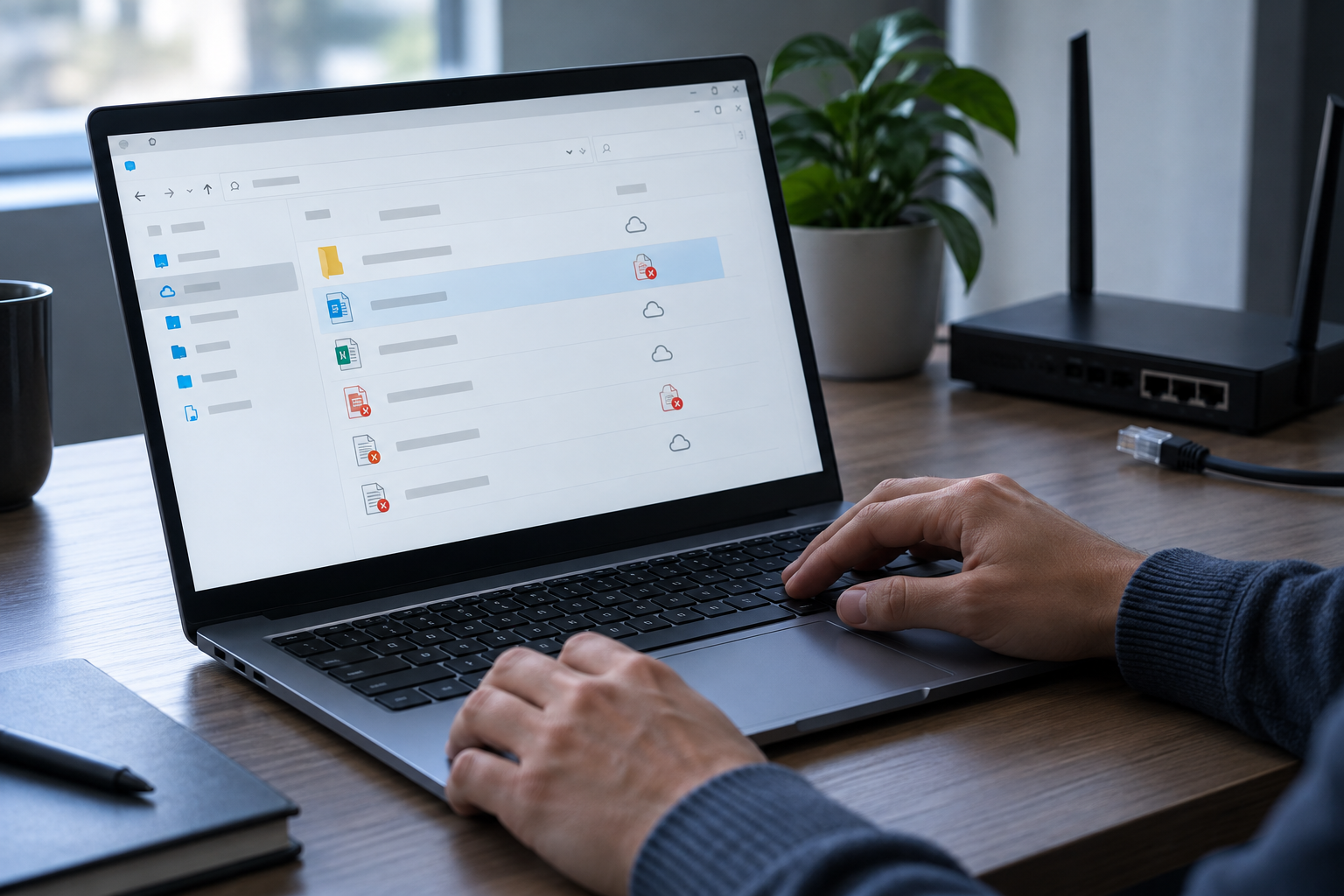
Treat OneDrive status icons as local-copy evidence
OneDrive Files On-Demand shows online-only, locally available and always-available states. Opening an online-only file can download it, while Always keep on this device intentionally retains a local copy.
A staff member opens an online-only document during a shared-PC session. It becomes locally available. Before handoff, the owner changes it back to online-only, checks the local state, signs out and confirms the second Windows account cannot reach an exported copy.
Run the control in five steps
- 01Confirm the correct OneDrive account and sync health.
- 02Read the File Explorer status for each sensitive folder.
- 03Review items marked locally available or always available.
- 04Use Free up space only after confirming sync and retention needs.
- 05Search recent downloads, exports and application recovery folders.
Preserve an accountable test record
Keep OneDrive account, item path, status before and after, sync result, Windows account, local-copy search and reviewer.
Stop and investigate when
- A green check is mistaken for cloud-only storage.
- A local file is deleted without understanding sync propagation.
- A second copy remains in Downloads or an application cache.
State what the control does not prove
Cloud Secure protects PC-side cloud-sync folder access, not Google/Dropbox/OneDrive provider-side TLS, E2EE or share permissions. Verify provider sharing, locally resident copies, Windows access and recovery separately.
Cloud-folder privacy questions
Does online-only mean the item was never downloaded?
No. Record current state and inspect prior downloads or exports.
Can deleting a synced file affect the cloud copy?
Yes. OneDrive sync can propagate changes, so verify the intended action first.
Sources for this decision
These sources support the stated boundaries and do not imply endorsement.